How to Fix HEIC Images Not Opening in Ubuntu 26.04 LTS
Understanding the HEIC Image Format Issue
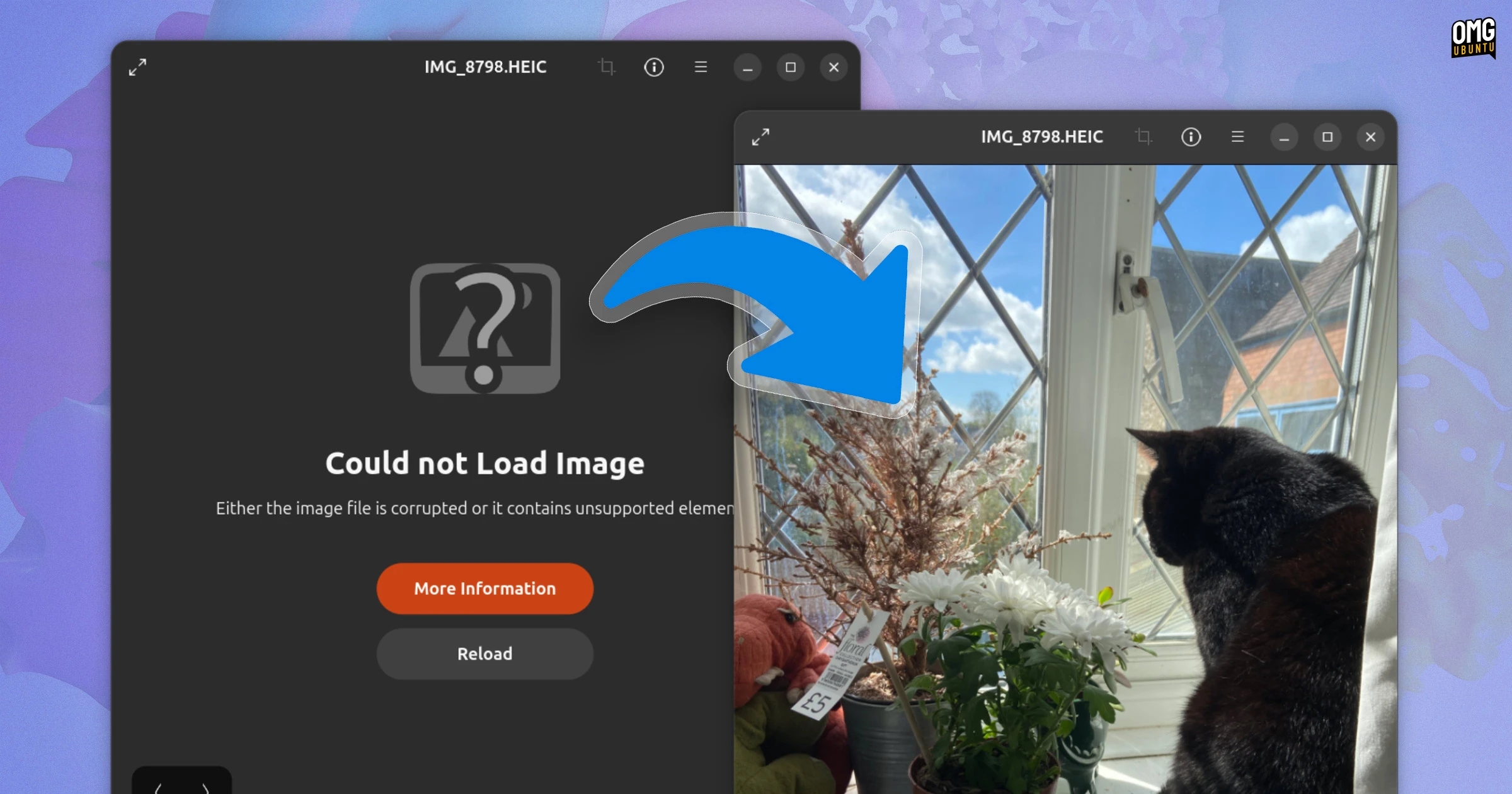
If you’ve ever connected your iPhone or a newer Android device to a computer running Ubuntu 26.04 LTS, you may have encountered a frustrating error: HEIC photos appear as broken placeholders, accompanied by a “Could not load image” message in the default Image Viewer. This isn’t a random glitch—it’s a deliberate change in Ubuntu’s package dependencies that leaves the system without a built-in HEIC decoder. HEIC (High-Efficiency Image Container) is a variant of the HEIF format that relies on H.265/HEVC compression. Many modern smartphones use it by default because it offers superior image quality at smaller file sizes compared to older JPEGs. However, Ubuntu 26.04 LTS no longer includes the necessary decoder library out of the box, which means users must manually enable support.

Why Ubuntu 26.04 LTS Doesn't Support HEIC Out of the Box
The root cause lies in a shift in how Ubuntu manages dependency chains for image libraries. While earlier releases bundled the libheif library (or related packages) automatically, the LTS version intentionally pruned these dependencies to streamline the default installation. This is not a bug—it’s a design decision to reduce the system’s footprint. The change primarily impacts applications like GNOME’s Image Viewer (also known as Eye of GNOME) and the file manager’s thumbnail preview. Once you connect a smartphone and mount it, the system tries to read the HEIC files but lacks the codec to decompress them, resulting in the error.
Step-by-Step Solution to Enable HEIC Support
Fortunately, restoring HEIC compatibility is straightforward, requiring only a quick installation of the missing decoder. Follow the steps below to get your images displaying correctly.
Installing the Required Codecs via Terminal
- Open a terminal window (Ctrl+Alt+T).
- Update your package list to ensure you have the latest repository information:
sudo apt update - Install the
libheiflibrary along with its development files. This covers the decoding engine needed for HEIC/HEIF files:
sudo apt install libheif1 libheif-dev - Optionally, install the
heif-gdk-pixbufplugin, which integrates the decoder with GNOME’s thumbnail system:
sudo apt install heif-gdk-pixbuf - Restart the Image Viewer. In most cases, the change takes effect immediately. If thumbnails still don’t appear, log out and back in to refresh the file manager.
After these steps, your HEIC photos should display correctly—both as full-size images and as thumbnails in Nautilus (Files). The libheif package handles both decoding and encoding, so you can also convert HEIC files to other formats using tools like heif-convert (included).
Alternative: Using a Different Image Viewer
If you prefer not to install system-wide codecs, consider using a third-party image viewer that bundles its own HEIC support. Applications like GIMP (via the gimp-heif-plugin), Shotwell (photo manager), or nomacs have optional or built-in HEIC compatibility. For a lightweight option, try qView—it supports HEIC natively on many systems. To use one of these, install it via the Ubuntu Software Center or using commands like sudo apt install gimp (and then add the plugin). Note that this approach may still require the underlying library, but it offers a more specialized interface.
Preventing Future Issues
To avoid similar problems with other media formats (e.g., AVIF, WebP), keep your system’s codec libraries up to date. You can also enable the ubuntu-restricted-extras package, which installs common multimedia codecs, though it doesn’t include HEIC by default. For a more proactive approach, consider using the command sudo apt install ubuntu-restricted-extras and then manually adding libheif as above. Additionally, regularly run sudo apt update && sudo apt upgrade to ensure package changes don’t break your setup. If you’re a developer or tester, you might also explore alternative formats like JPEG XL, which Ubuntu may support more broadly in future releases.
By understanding the intentional nature of this “breakage” and applying the simple fix above, you can restore full HEIC functionality in Ubuntu 26.04 LTS. Your iPhone or Android photos will load seamlessly, and you can continue using your preferred image viewer without errors. For further help, consult the official package page on Ubuntu Packages or community forums.
This article was originally published as a blog post on OMG! Ubuntu. Reproduced with permission.