How to Install and Use Orion for Linux Beta with New Content Blocker and Download Manager
Introduction
If you've been following the development of Orion for Linux, you know it's a native GTK4/libadwaita browser powered by WebKitGTK, aiming to match its macOS sibling. The latest beta—v0.3—is now ready for broader real-world use and feedback, bringing two eagerly awaited features: a built-in content blocker and a download manager. Whether you're a longtime fan of Kagi's browser or just curious about a lightweight, privacy-focused alternative, this step-by-step guide will help you get the most out of this update.

What You Need
Before diving in, ensure you have the following:
- A Linux distribution with a modern desktop (GNOME, KDE, etc.)
- An internet connection for downloading and updating
- Basic familiarity with terminal commands (optional but helpful)
- At least 500 MB of free disk space for the installation
- No existing Orion installation? That's fine—the beta installs cleanly
Step-by-Step Guide
Step 1: Download the Orion for Linux Beta (v0.3)
Head to Kagi's official downloads page (you can find it on the Orion website) and grab the latest Linux beta. Look for the v0.3 build—it's marked as “beta” and includes the new features. In most cases, you'll get a compressed archive (like .tar.gz) or an AppImage. If your distribution supports Flatpak, you might also find a Flathub release; check the site for options.
Step 2: Install Orion on Your System
The installation method depends on what you downloaded:
- AppImage: Make it executable (
chmod +x Orion-*.AppImage) and run it directly. No system-wide installation required. - Archive: Extract to a folder, then run the
orionexecutable inside. You can create a desktop shortcut for convenience. - Flatpak: If available, use
flatpak installfrom your terminal.
After launching Orion for the first time, you'll be greeted by a setup wizard that guides you through importing bookmarks or signing in with a Kagi account (optional). You can skip this and configure later.
Step 3: Explore the New Content Blocker
One of the headline features of v0.3 is the integrated content blocker. Here's how to use it:
- Click the hamburger menu (three horizontal lines) in the top-right corner.
- Select Settings and then navigate to Privacy & Security.
- Under “Content Blocking,” toggle Block Trackers and Block Ads as you see fit. You can also create custom filters.
- Refresh a page to see the difference—pages load faster, and intrusive content is suppressed.
Tip: The blocker works automatically on most websites. If a site breaks, you can disable it for that domain.
Step 4: Manage Downloads with the New Download Manager
The download manager now lives in a dedicated panel, making it easy to track file transfers:
- Start a download by clicking any file link — the panel appears at the bottom of the window.
- Use the panel to pause, resume, or cancel downloads.
- Right-click a completed download to open the file or show its location in your file manager.
- Access the full history by clicking the download icon in the toolbar or using the menu.
This manager replaces the old simple prompt and gives you more control over simultaneous downloads.
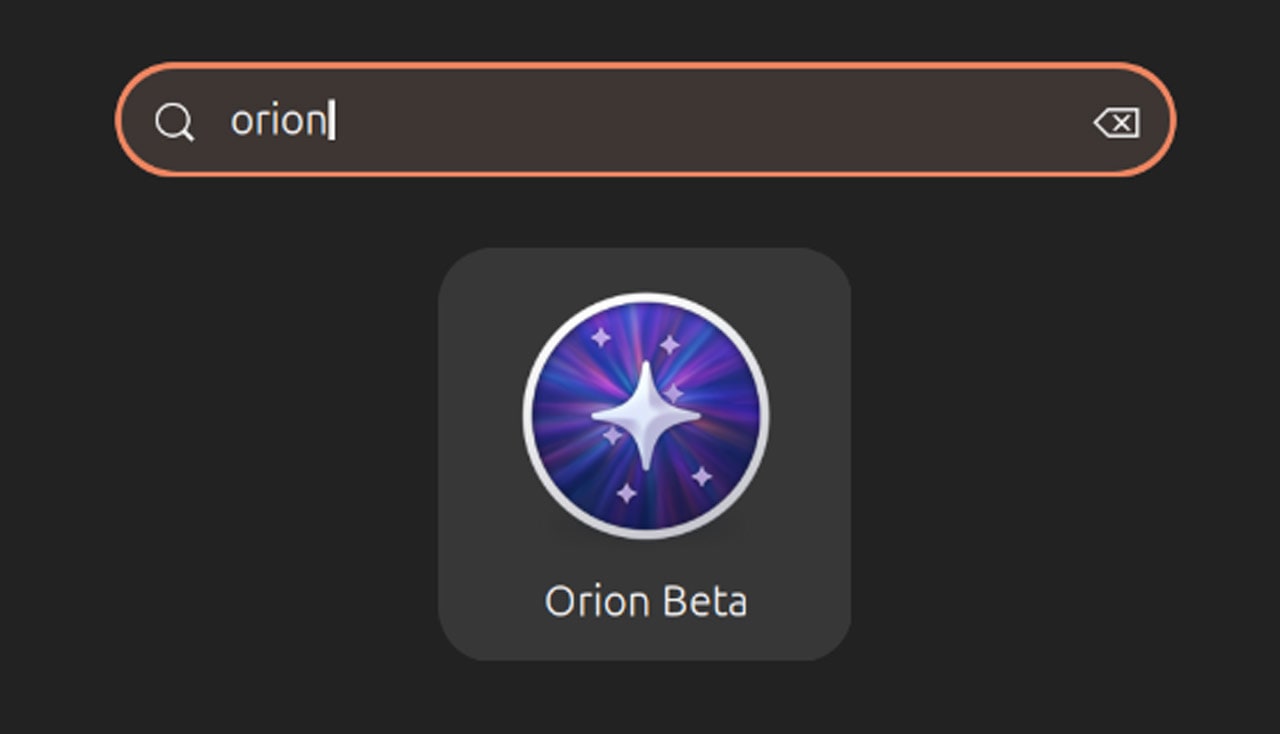
Step 5: Make the Most of Core Browsing Features
Beyond the new additions, Orion for Linux includes several mature features:
- Tab Management: Group tabs, mute audio, and snapshot sessions.
- Password Manager: Built-in with auto-fill. Go to Settings > Passwords to import from other browsers.
- History Tracking: Full browsing history with search and sync (if you sign into Kagi).
- Focus Mode: A distraction-free reading view. Enable it from the address bar icon while on an article page.
Take a few minutes to customize your toolbar and set a default search engine (Kagi's own engine is great for privacy).
Step 6: Provide Feedback to Kagi
As this is a beta, your input is valuable. Kagi has set up feedback channels:
- Submit bug reports via the Report a Problem link in the menu.
- Join the Orion community forum to suggest features.
- Use the built-in feedback tool (if available) to send anonymous usage data.
Your reports help shape the browser before the stable release.
Conclusion and Tips
With v0.3, Orion for Linux has evolved into a much more capable browser, now offering content blocking and a download manager that bring it closer to the macOS version. Remember:
- This is beta software—expect occasional bugs. Backup your profile regularly.
- Keep an eye on Kagi's blog for updates; the developers are actively iterating.
- If you encounter performance issues, try disabling hardware acceleration in settings.
- Share the browser with friends who value a native GTK experience.
By following these steps, you'll be able to harness all the new features while contributing to the browser's growth. Happy browsing!