How to Set Up and Use Your MOFT MagSafe Wallet with Find My Support
Introduction
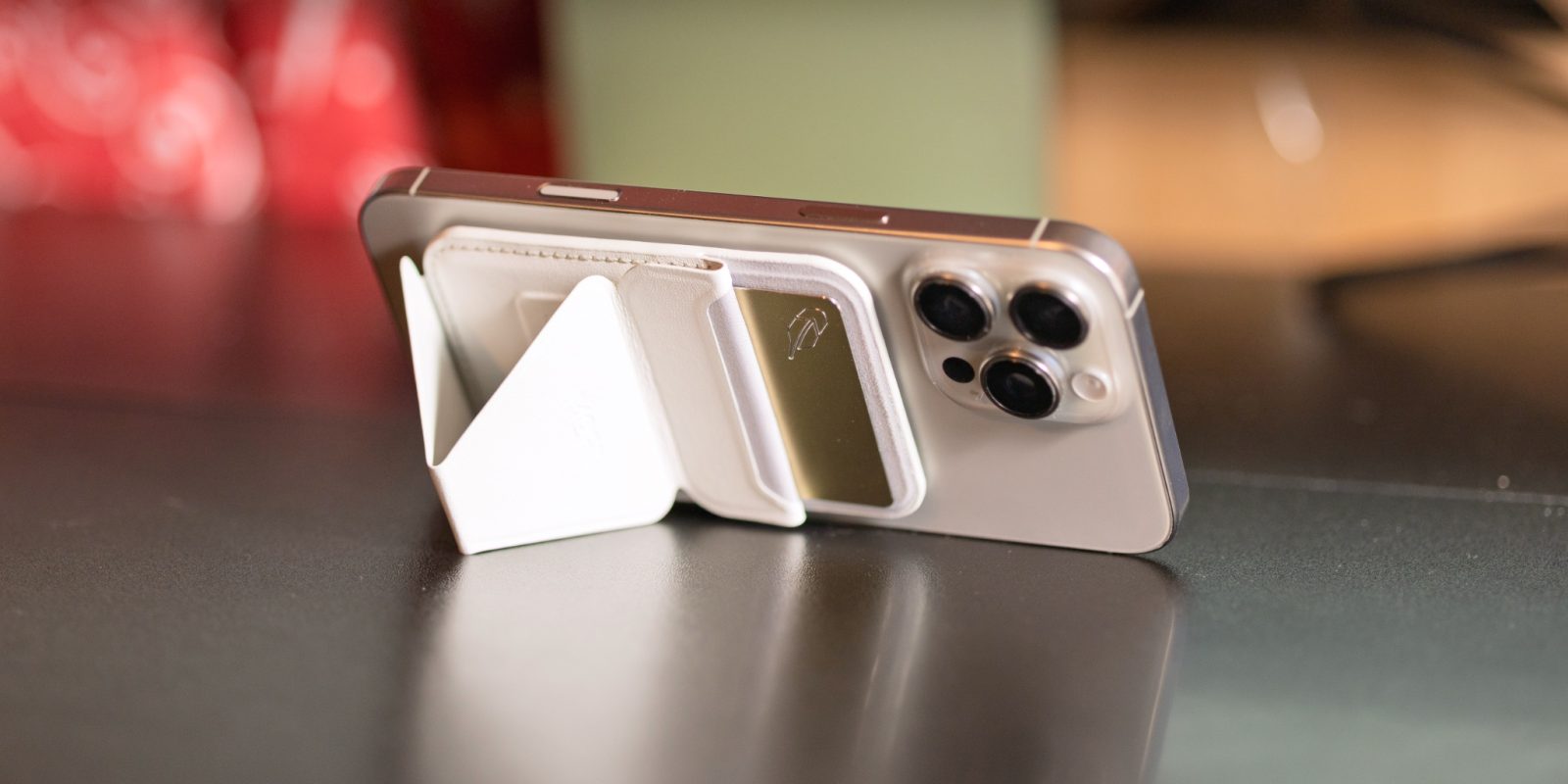
After much anticipation, the MOFT MagSafe wallet with kickstand has finally arrived with a game-changing upgrade: Find My integration. First teased at CES 2025, this slim accessory now lets you track your wallet through Apple's Find My network, giving you peace of mind if you ever misplace it. Whether you're a long-time fan of MOFT's minimalist design or new to MagSafe wallets, this step-by-step guide will walk you through everything you need to know to set up and get the most out of your MOFT wallet.
What You Need
Before you begin, make sure you have the following:
- A compatible iPhone with MagSafe (iPhone 12 or newer).
- The MOFT MagSafe wallet with kickstand (the Find My version from CES 2025).
- An Apple ID signed into iCloud with Find My enabled.
- A stable internet connection for initial setup.
- Optional: A few cards or some cash to test the fit.
Step-by-Step Setup and Usage Guide
Step 1: Attach the Wallet to Your iPhone
Hold your iPhone in one hand and the MOFT wallet in the other. The wallet has a built-in magnet ring that aligns with the MagSafe magnetic array on the back of your iPhone. Simply bring them close together until you feel a satisfying snap. The wallet should sit flush against the phone, perfectly centered. If it feels misaligned, lift it off and reattach. The strong magnets ensure it stays put during daily use, even with a slim case on.
Tip: For a more secure grip, you can also attach the wallet when your phone is inside a MagSafe-compatible case. Avoid cases that are too thick, as they may weaken the magnetic connection.
Step 2: Activate Find My Integration
Unlike traditional AirTags, MOFT's Find My feature is built directly into the wallet's circuitry. Here's how to pair it:
- Open the Find My app on your iPhone.
- Tap the Items tab at the bottom.
- Tap the plus (+) icon in the top-right corner and select Add Other Item.
- Your iPhone will scan for compatible devices. Bring the MOFT wallet close to your phone (within a few inches).
- When the wallet appears on screen, tap Connect.
- Follow the on-screen instructions to name your wallet (e.g., "My MOFT Wallet") and choose an emoji if desired.
- Tap Agree to enable the Find My network and location tracking.
Once paired, the wallet will appear in the Find My app under the Items tab. You can now see its last known location on a map, play a sound to locate it nearby, or put it in Lost Mode.
Step 3: Store Cards and Cash
The MOFT wallet features a clever sliding mechanism that holds up to 3 cards. To insert a card, push the small tab on the side to open the slot. Slide your card in gently until it's fully seated. Repeat for additional cards. For cash, fold bills and tuck them behind the cards (the wallet has a small pocket for that). To remove a card, push the tab again and slide the card out from the top. The spring-loaded design keeps cards secure but accessible.
Note: Avoid overstuffing the wallet. Using more than 3 cards or thick folded cash may make the slot hard to close or affect the magnetic attachment.
Step 4: Use the Kickstand
One of MOFT's signature features is the built-in kickstand. To deploy it, simply press down on the top third of the wallet until the stand pops out. The stand forms a stable triangle that holds your iPhone in both portrait and landscape orientations. For watching videos or hands-free calls, this is incredibly handy. To collapse, press the stand back into the wallet until it clicks flat. The stand is made of durable material and should last for thousands of uses.
Step 5: Remove and Reposition the Wallet
When you need to remove the wallet (e.g., for wireless charging or to use a different case), simply pull it straight off the back of your phone. The magnets are strong but not so strong that removal is difficult. You can reattach it any time; the Find My connection remains active as long as the wallet is within Bluetooth range (around 30 feet). If you move out of range, the last known location is updated via the Find My network.

Step 6: Keep Track of Your Wallet
If you ever misplace your wallet, open the Find My app and select your MOFT wallet. You can:
- Play a Sound: The wallet will emit a chime to help you locate it if it's nearby.
- See Location: View the last known location on a map. If other Apple devices pass by, the location updates even when you're not connected.
- Enable Lost Mode: You'll receive a notification when the wallet is found. You can also leave a message with your contact info.
The Find My integration works for up to one year on the internal battery, which is non-replaceable but lasts a long time. When the battery runs low, the app will alert you. At that point, you'll need to replace the wallet (MOFT does not offer battery replacement services, but the wallet is designed to be durable enough to last the battery's lifespan).
Tips for Getting the Most Out of Your MOFT Wallet
- Clean your iPhone back and the wallet's magnetic area occasionally with a microfiber cloth to remove dust and oil that can weaken adhesion.
- If you use a phone case, choose one that is MagSafe-compatible and not too thick. MOFT recommends its own cases for optimal fit, but many third-party cases work well too.
- For wireless charging (Qi or MagSafe), you can leave the wallet on the phone with most chargers, but for best results, remove the wallet if your charger is weak or if you have a thick case.
- Test the kickstand on a flat surface the first few times until you get a feel for the deployment angle. Avoid using it on uneven or slippery surfaces.
- Update your iPhone to the latest iOS version to ensure full compatibility with Find My features.
- If you lose connection to the wallet, try re-pairing it by removing and adding it again in the Find My app. A full reset may require holding the wallet close and following the steps in Step 2.
- Remember the size: The MOFT wallet is slim, but it does add a small bulge. Practice sliding it in and out of pockets to avoid snagging.
With these steps, you're all set to enjoy the convenience of a MagSafe wallet and the security of Find My tracking. Whether you're using the kickstand to watch videos or quickly accessing your ID at a store, the MOFT wallet is designed to adapt to your daily routine. Now that it's finally available after its CES 2025 debut, you can buy one and start using it right away.